Plant labels, brochures, and signage have long been a common way to share information with visitors and staff about your plant collection. QR codes take this a step further — printed on signage or brochures, they let anyone with a smartphone instantly access richer information, typically a webpage, without having to type a URL.
Because Hortis is a web-based platform, most records in your collection have their own unique web address. This makes it straightforward to link QR codes directly to the most relevant resource depending on the context.
Common uses for QR codes
Public site home page
Place a QR code at the garden entrance or on general visitor materials to let people load your public Hortis site and explore the collection at their own pace.
Example (Royal Tasmanian Botanical Gardens): https://rtbg.hortis.com/public/site/rtbg

Public Taxon page
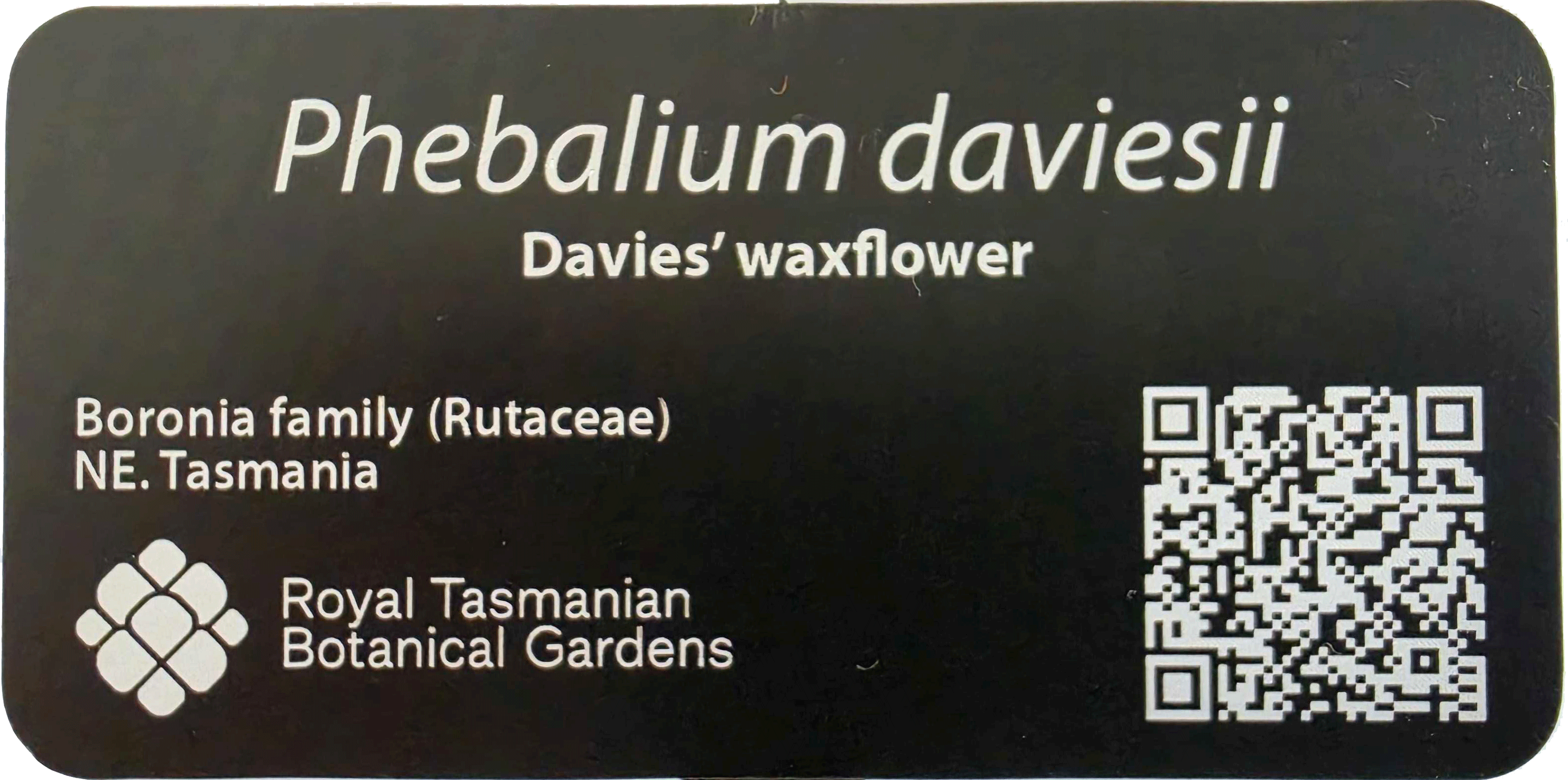
Some gardens prefer species labels without accession numbers, which allows labels to be reused across plantings. In this case, linking to the taxon page rather than a specific plant record is the better approach.
Note: The taxon URL is not yet included in CSV exports. For now, copy the URL directly from the taxon page on your public site.
Signage example
Public Plant material page
For signage tied to individual plants, you can include a QR code linking to that plant's public page. When you download the plant material CSV for label printing, use the Public URL column to generate the corresponding QR codes.
Example (Lagarostrobos franklinii)

Plant material page (staff / internal use)
Authenticated users will notice that every record in Hortis has its own URL. You can use this for internal signage, such as nursery labels, to give staff quick access to the full record for a specific plant material.
Example URL format:
https://mysubdomain.hortis.com/site/sitename/material/2026-0024_A
Note: Internal URLs currently need to be generated manually by using a spreadsheet formula.
How to generate QR codes from a URL
For label printing: If you use a commercial label printing company or label printing software, simply provide the relevant URL — the QR code will typically be generated for you by the vendor or the software.
For ad hoc use and testing: Free online tools work well for one-off codes. A couple of options:
- qrcode-monkey.com
- A QR code extension for your web browser